
Entry Ninja Training Manual
Entry Ninja is an online support platform for CTK bookings.
Bookings for events whereby the promoter has used the self-service system will appear on the entry ninja platform. Thus, meaning that bookings made through this channel will not appear on your reports but will appear on the entry ninja/box-office platform.
For customer queries relating to bookings through the entry ninja platform make use of the link. https://admin.computicket-boxoffice.com/login
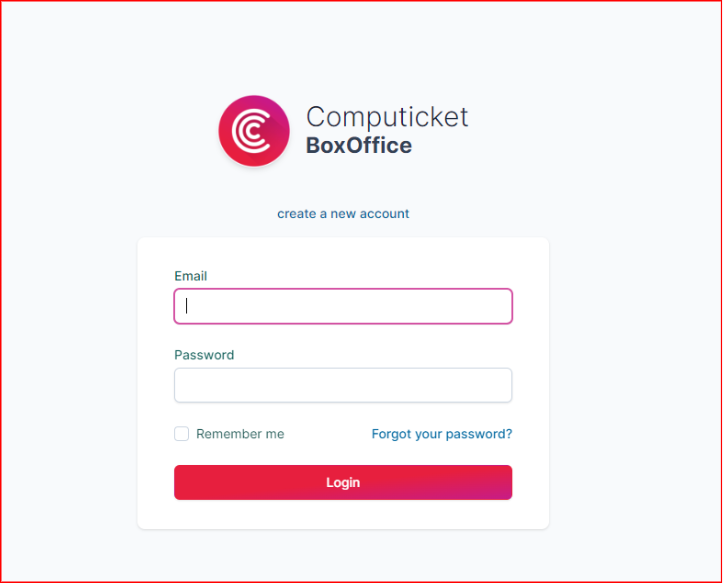
You are then required to log in.
Once you have logged in you will be directed to the main screen.
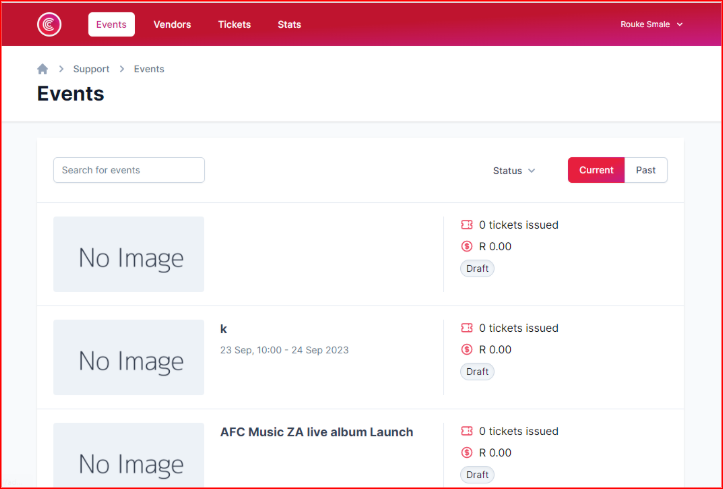
Depending on the query, you can access all aspects from this screen.
Booking Confirmation resend
If a customer has booked an event but hasn't received email confirmation
Click on “tickets” and search using either the reference number or email address used by the customer.
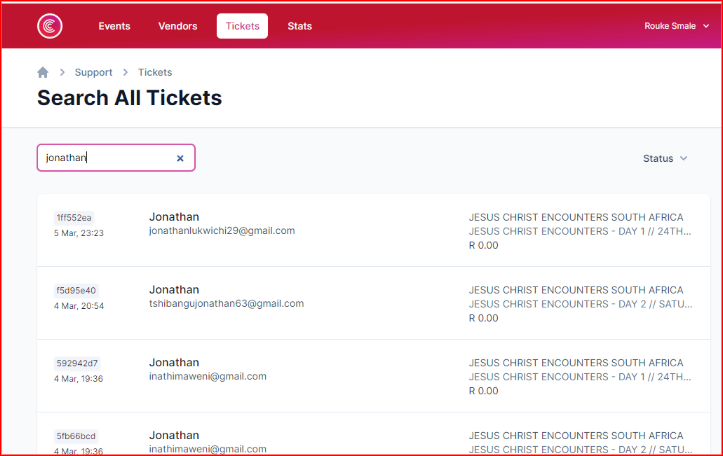
Once you have found the booking, click on it and reconfirm the email address on the booking. If the email address has a fault, you may rectify it by clicking on the “edit” option.
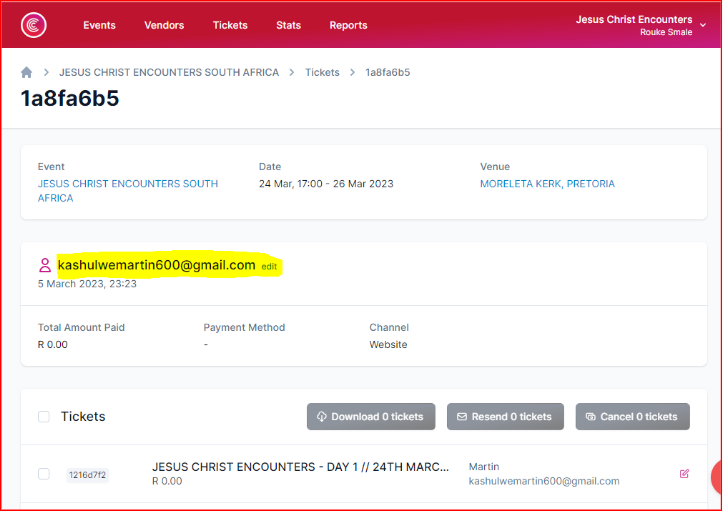
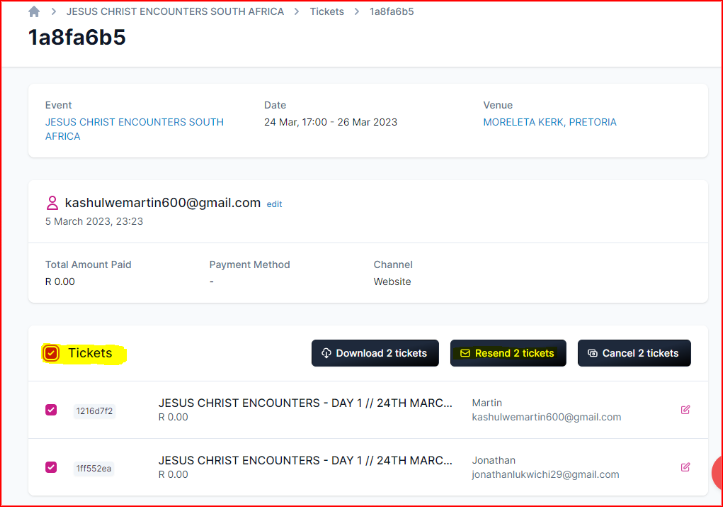
Tick the “tickets” box to then select all the tickets and click “resend tickets”. The system will then send out email confirmation once again to the customer containing the tickets the customer needs to gain entry to the event.
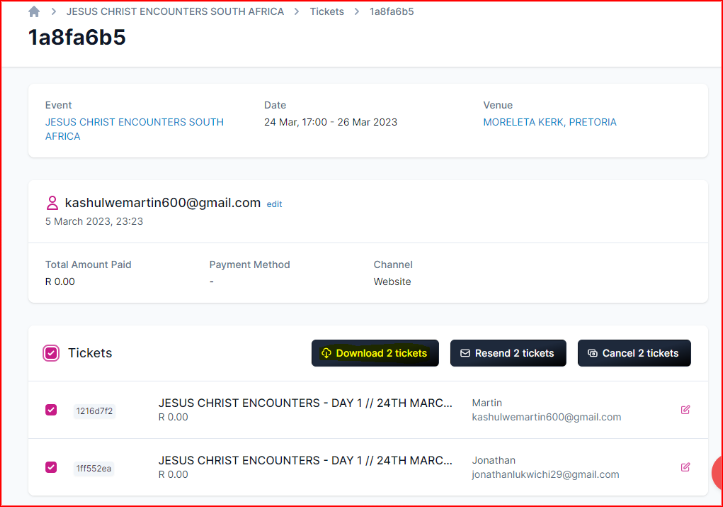
If the customer has still not received the tickets, you may download the tickets and manually email them to the customer from your outlook account.
Refunds/Cancellations
If a customer calls in for a cancellation, you may not process it from your side; it needs to be escalated to a supervisor for the refund to be processed.
Click on “tickets” and search using either the reference number or email address used by the customer.
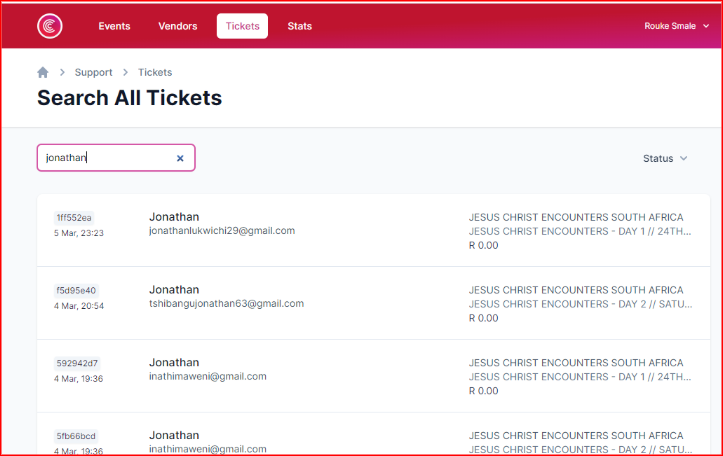
Once you have found the booking, click on it and confirm all the details of the booking to ensure you have the correct booking. Once the customer confirms this is, the correct booking confirms what the reason for the refund is.
If the event was cancelled, the customer is entitled to a full refund, and you may simply send this to ccs who will process the refund and send you confirmation once done.
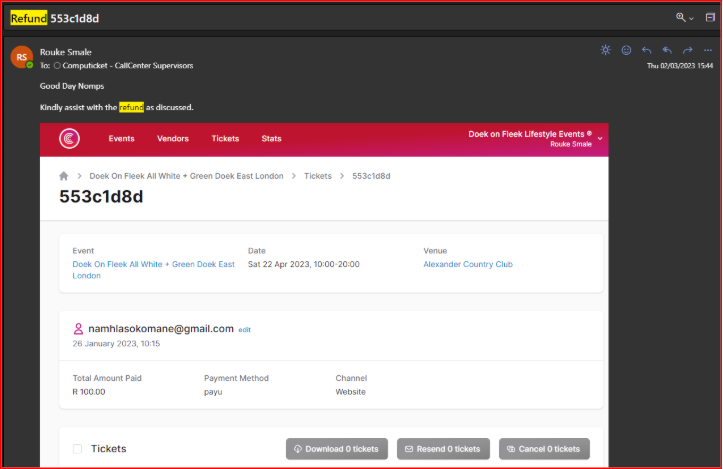
You may then refresh the page to confirm the refund is done.

If the event wasn't cancelled, you need to charge the customer a penalty fee applicable depending on how close we are to the date of the event.
- If the cancellation occurs more than 30 days prior to the event a 15% cancellation fee will apply.
- If the cancellation occurs less than 30 but more than 7 days prior to the event a 50% cancellation fee will apply.
- If the cancellation occurs less than 7 days prior to the event a 100% cancellation fee will apply.
Notwithstanding the aforesaid, if you can provide us with suitable documentary proof that a person in whose name a ticket was booked will not be able to attend the event because of his/her death and/or hospitalization, no cancellation fee will apply in respect of the cancellation of such person`s ticket.
Event Information Queries
If a customer calls in requesting event information for an event that is on the entry ninja platform.
The information will not show on the retail system you need to navigate to the event on the Box-office/Entry Ninja platform to get the information.
Click on “Events” to search for the event in question.
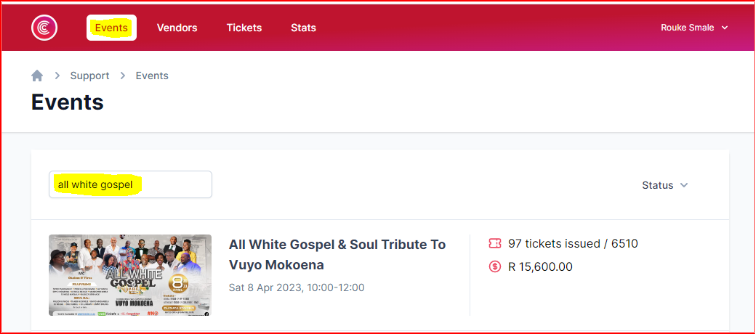
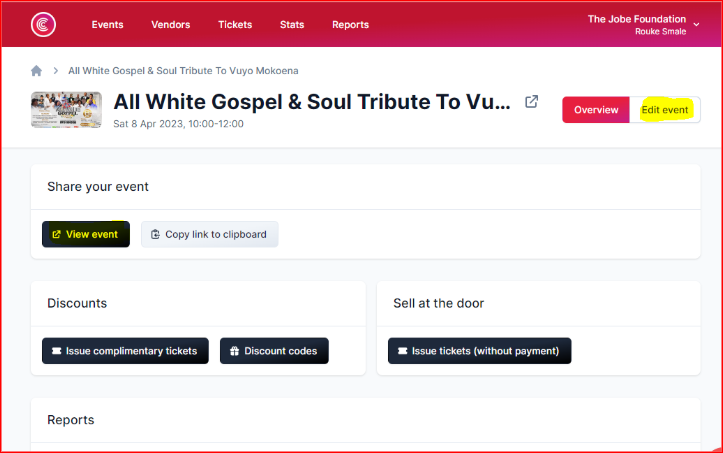
Depending on what the customer would like to know, you may navigate to either “View Event” or “Edit Event”. If the relevant information doesn't appear on either of these pages, ask the customer to email entertainment@computicket.com.
EFT Refunds
If a customer has a situation and needs a refund for an event that we no longer have access to refund from our side, we are still able to assist if management or the event organizer approves the refund.
This refund cannot be facilitated through the Box office portal.
You will notice when trying to select any one of the tickets it doesn’t allow you to tick any of the boxes. This is how you can tell we no longer have access to a refund through the portal.
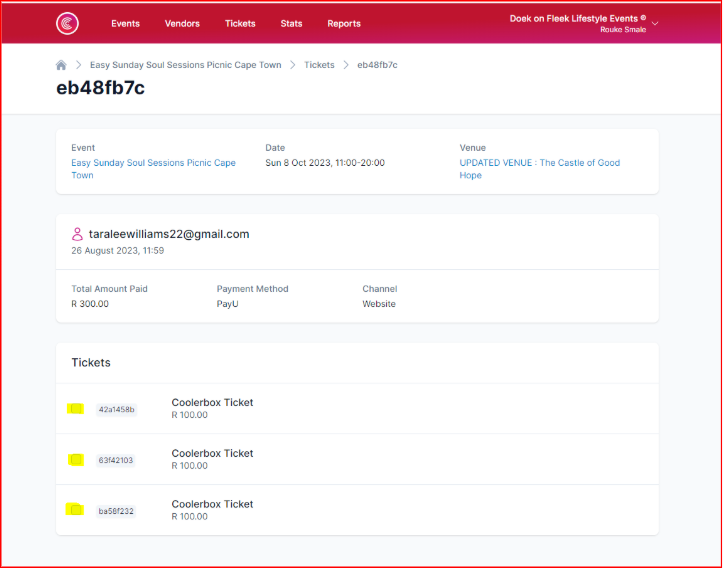
The refund will either need to be done via EFT and deducted from the event organizer or CTK depending on the reason for the refund and who Authorized it.
You will need to have Authorization in writing and not just as word of mouth.
Kindly obtain the customer's banking details, email with authorization for the refund, and proof of the booking.
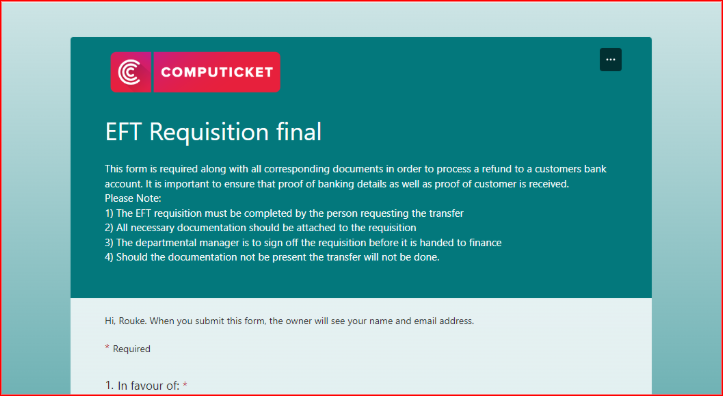
The EFT is to be done through the EFT link (EFT Requisition final (office.com) and all the relevant screenshots attached.
Recons
If a refund is processed at your retail terminal as cash, you will need to fill out a reconciliation form.
This is a physical form that you need to manually fill out and submit to the finance team.
The form is to be submitted along with all the relevant documentation as to why the refund was performed and how the customer was refunded.
The documentation attached should be a step-by-step representation of the steps taken to refund the customer as well as an explanation as to why the refund was made.
When filling in the recon, you are only required to fill in the “listing of reinstatements” box on the form.
You are required to fill in the “Date” which is the date the refund was captured on your terminal. “Number of tickets” which will be the number of tickets you have refunded under that reference number. The “Reference number” refers to the Basket number. “Value” would be in relation to the full number of tickets.